Add image to R+ logo in Affinity
Add image to R+ logo in Affinity
Affinity Studio is professional vector-based software that gives you many options for editing vector-based images and icons. It is available free of charge.
Use Affinity when you need transparent background exports, which are not available in the free version of Canva.

Accessing the template
- Download the
.AFand.PDFfiles from the Editable assets R+ folder - Open the files directly in Affinity Studio
Adding images
- Drag and drop your image onto the artboard
- Open the Layers panel
- Move the image layer under either the R or + layer to embed it within that section
The image should appear as a sublayer inside the shape group, acting as a clipping mask.
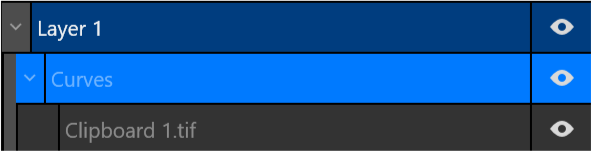
- Use the Move tool to reposition or resize the image within the clipped shape

Ensure sufficient contrast between images and background colors.
Modifying colors
- Select the section you want to recolor
- Double-click the outline or fill color
- Enter a new color code from the brand palette, or use the color picker
| Color | Hex code |
|---|---|
| Blue Violet | #881ef9 |
| Bastille Black | #2f2f30 |
| Lavender White | #ededf4 |
| Brilliant Rose | #ff5b92 |
| Dodger Blue | #146af9 |
Warning
Please do not move, transform, or rotate the R relative to the RLadies+ text part of the logo.
Exporting
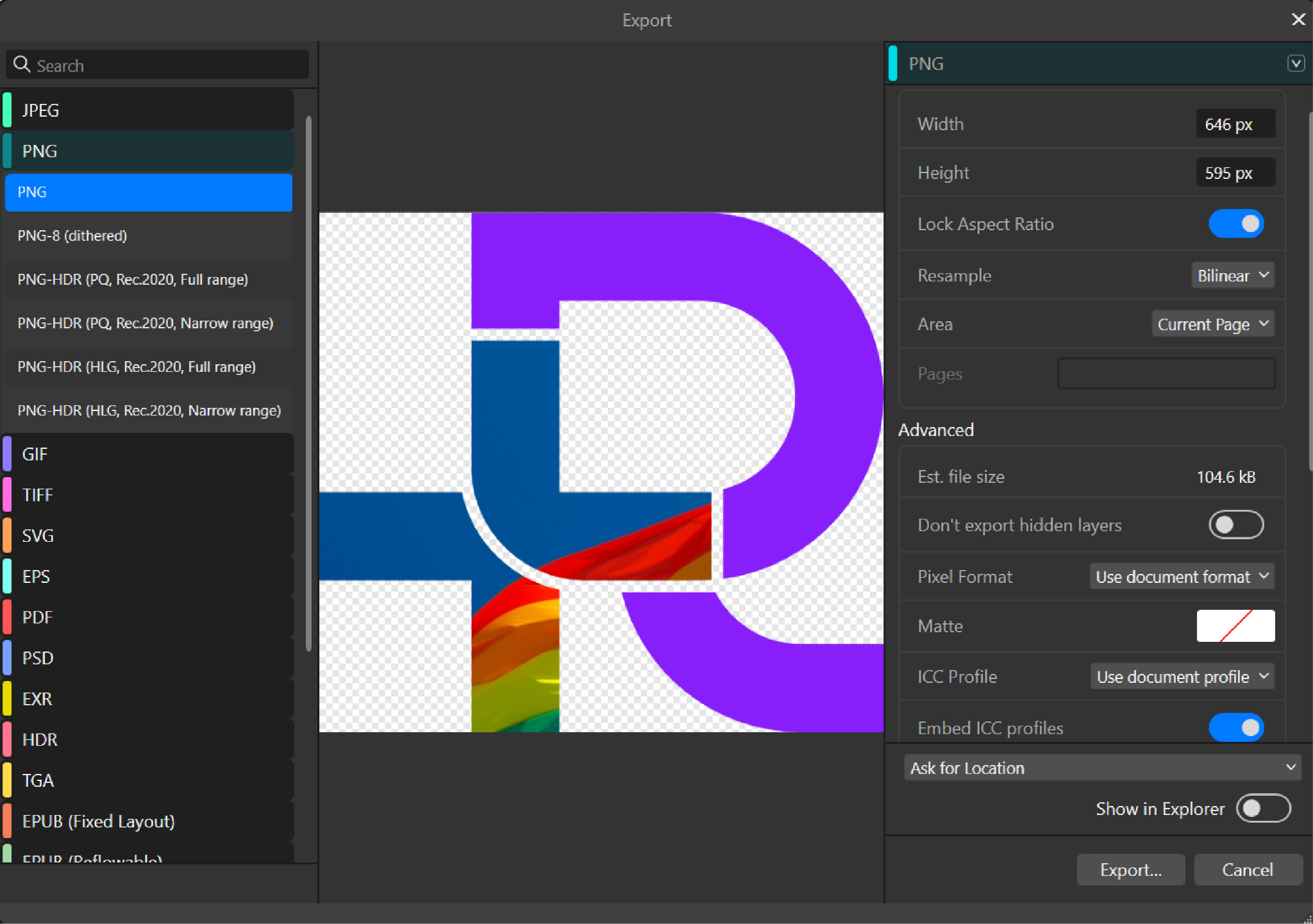
- Go to File > Export
- Select your working area or page
- Choose your preferred file format (PNG recommended) and resolution
- Click Export
Resources
- Editable assets R+ folder on Google Drive
- RLadies+ Branding Guidelines on Google Drive