Slidedeck templates
Using the RLadies+ slidedeck templates
The RLadies+ slidedeck templates are available in both Google Slides and PowerPoint formats. They follow the RLadies+ branding guidelines for coherence and accessibility, and offer slide layouts in three colour variations: light, purple, and dark.
All template files are in the Slidedeck templates folder on Google Drive.
Info
Do not change the fonts or colours of the template elements, or add new elements (unless adding logos or images). This keeps all RLadies+ presentations consistent and accessible.
Google Slides
Google Slides is free — you only need a Google account and an internet connection.
Getting started
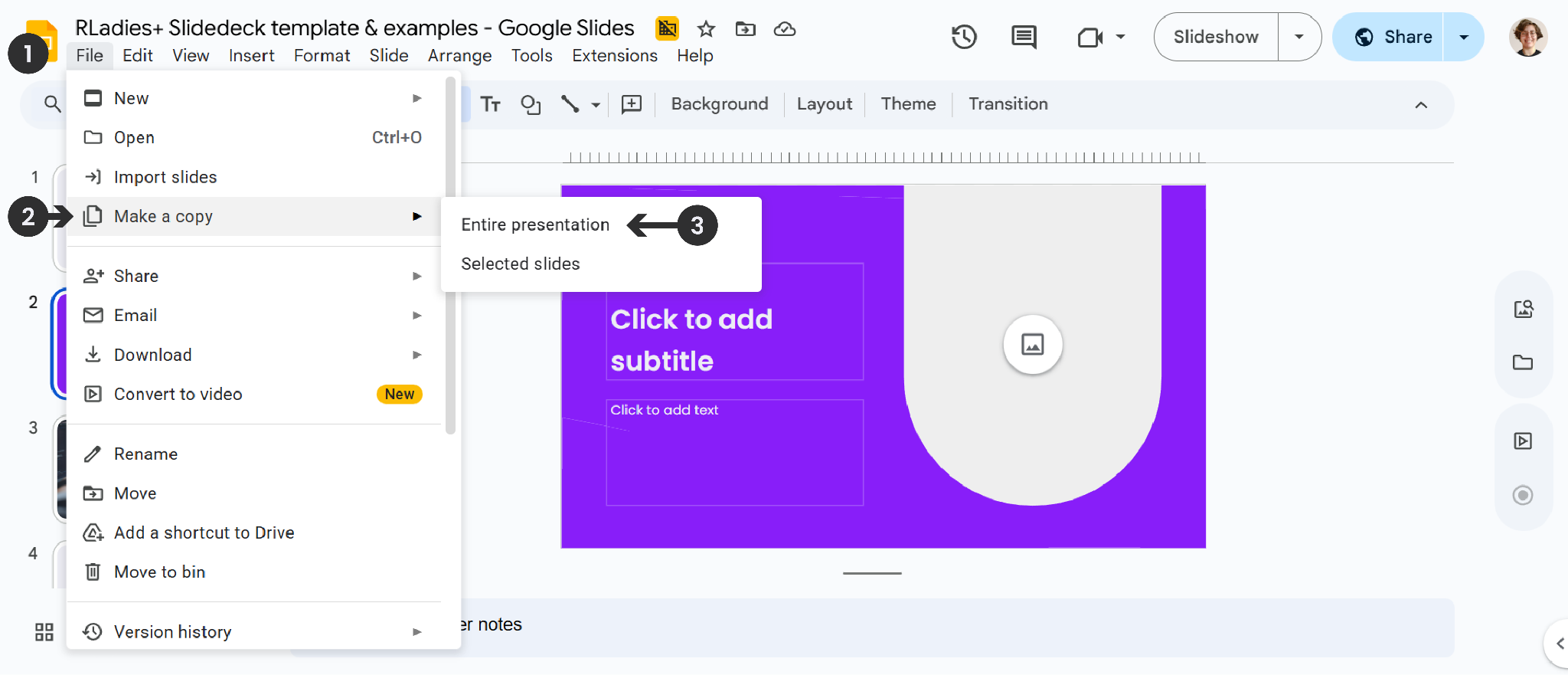
- Open the RLadies+ Slidedeck template & examples file
- Go to File > Make a Copy > Entire Presentation
- Choose a location in your Google Drive — the copy is fully editable
Choosing slide layouts
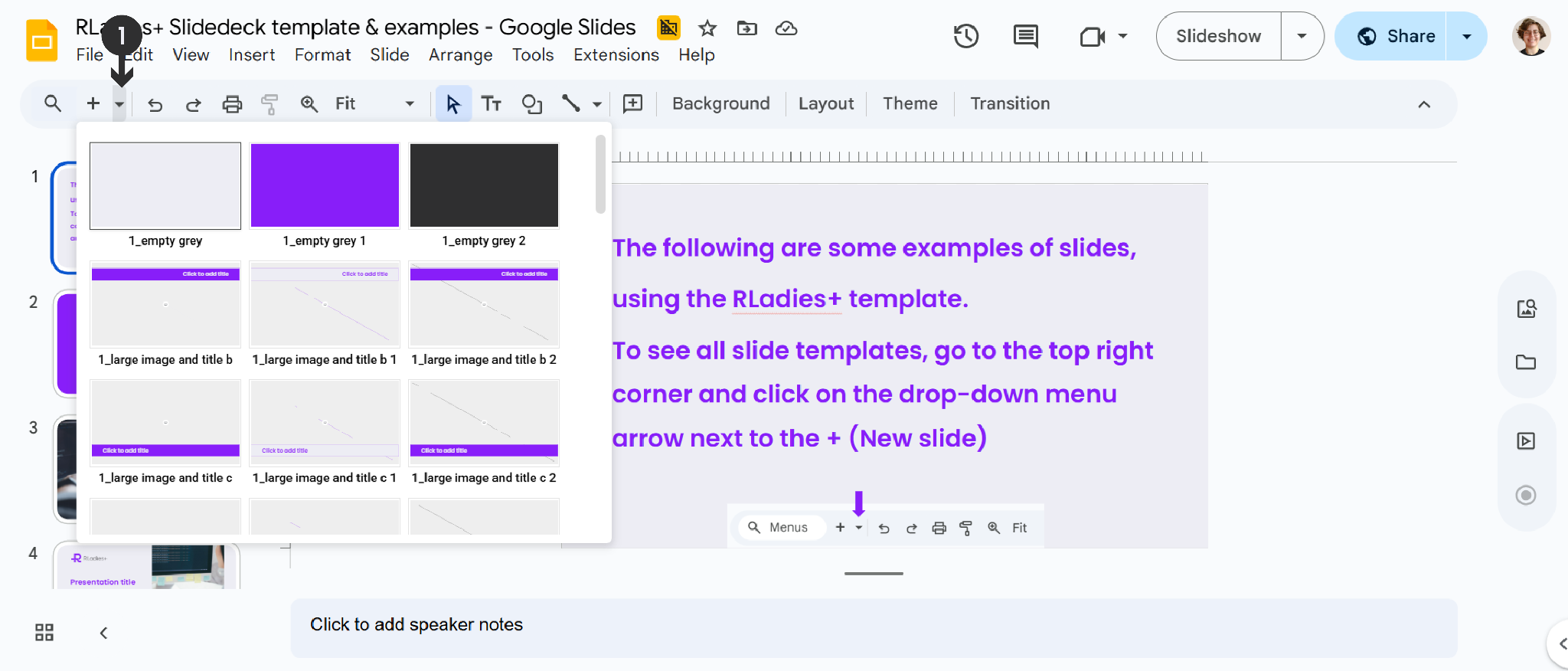
The example file shows only a small selection of available layouts. To see all options, click the small downward arrow next to New Slide in the toolbar to browse the full gallery. Scroll down to see all title and content slide layouts in the three variations (light, purple, dark).
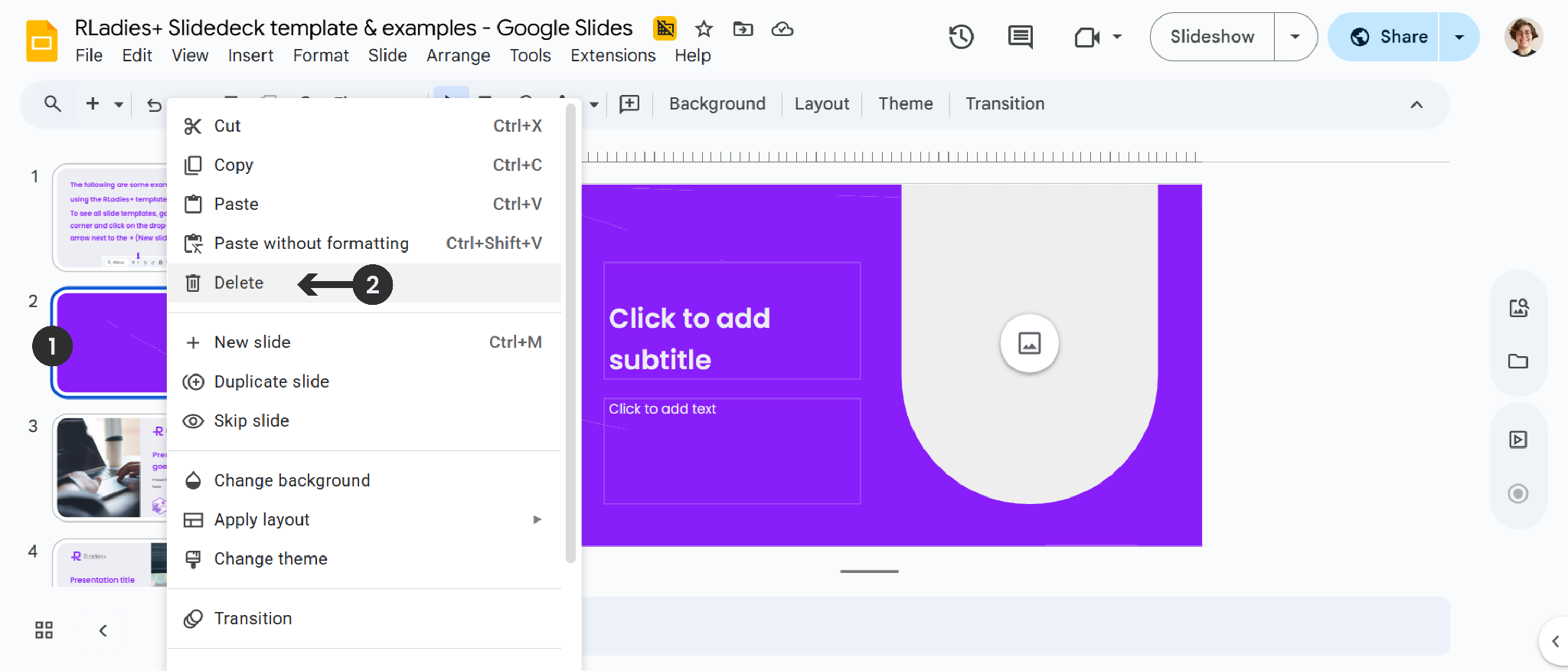
To remove unwanted slides, right-click the slide thumbnail in the sidebar and select Delete.
Slide elements
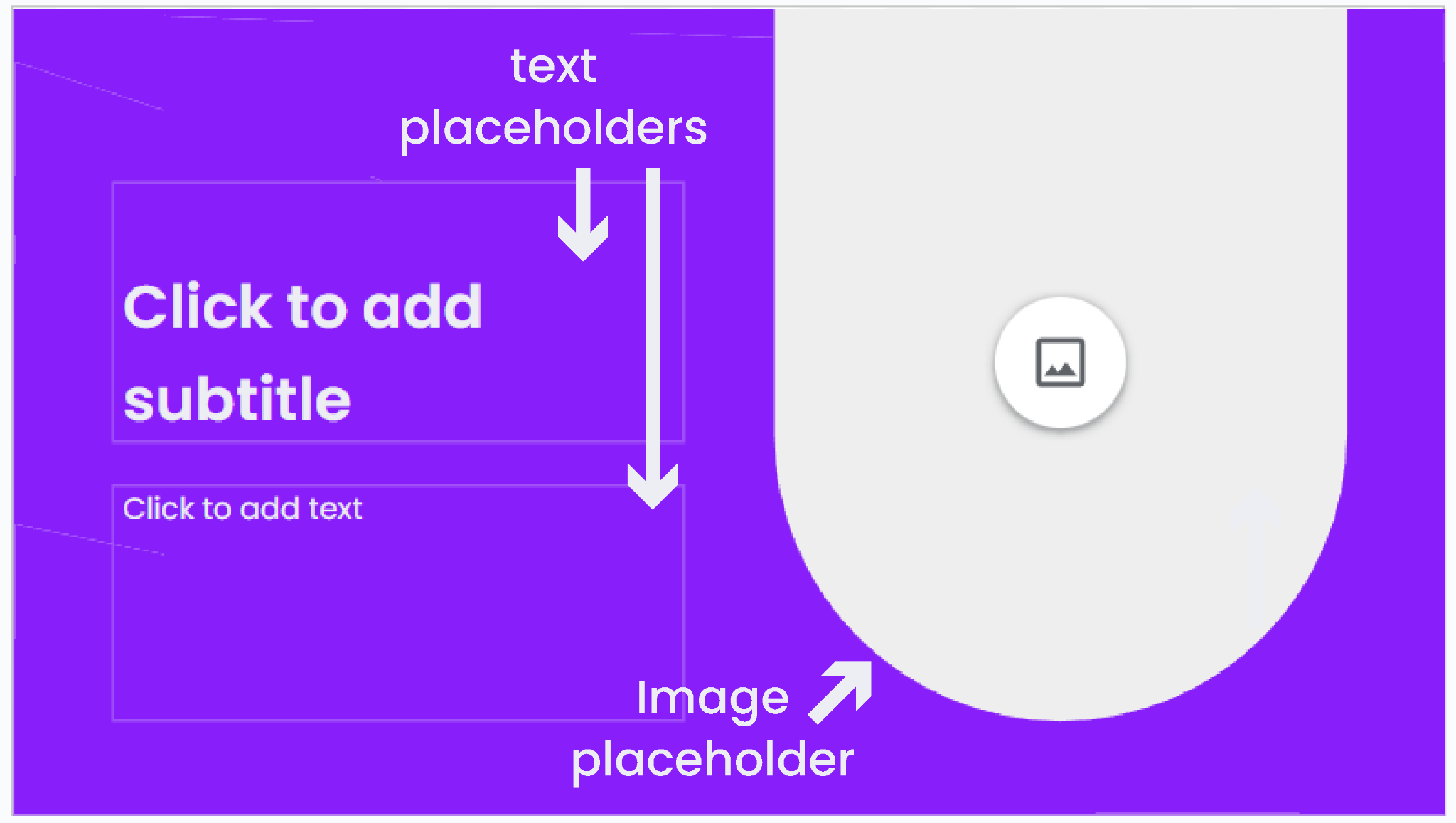
Each layout includes pre-formatted placeholders for text and images.
Adding content
Text: Click a text placeholder and type. Use bold for emphasis only — avoid italics, underlines, or all-caps for accessibility.
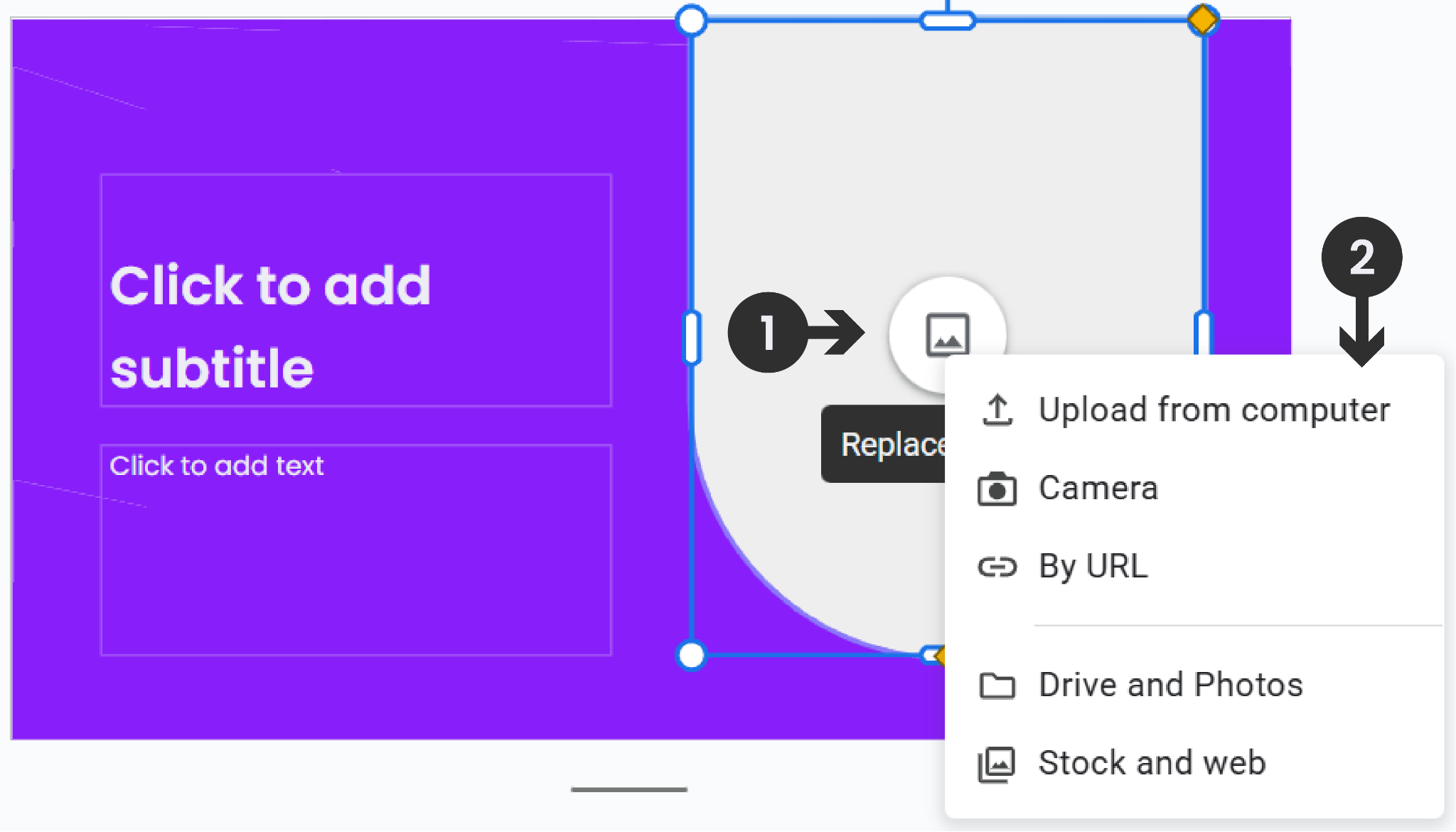
Images: Click the image placeholder icon, then choose a source (Upload from computer, By URL, Drive and Photos, Stock and web).
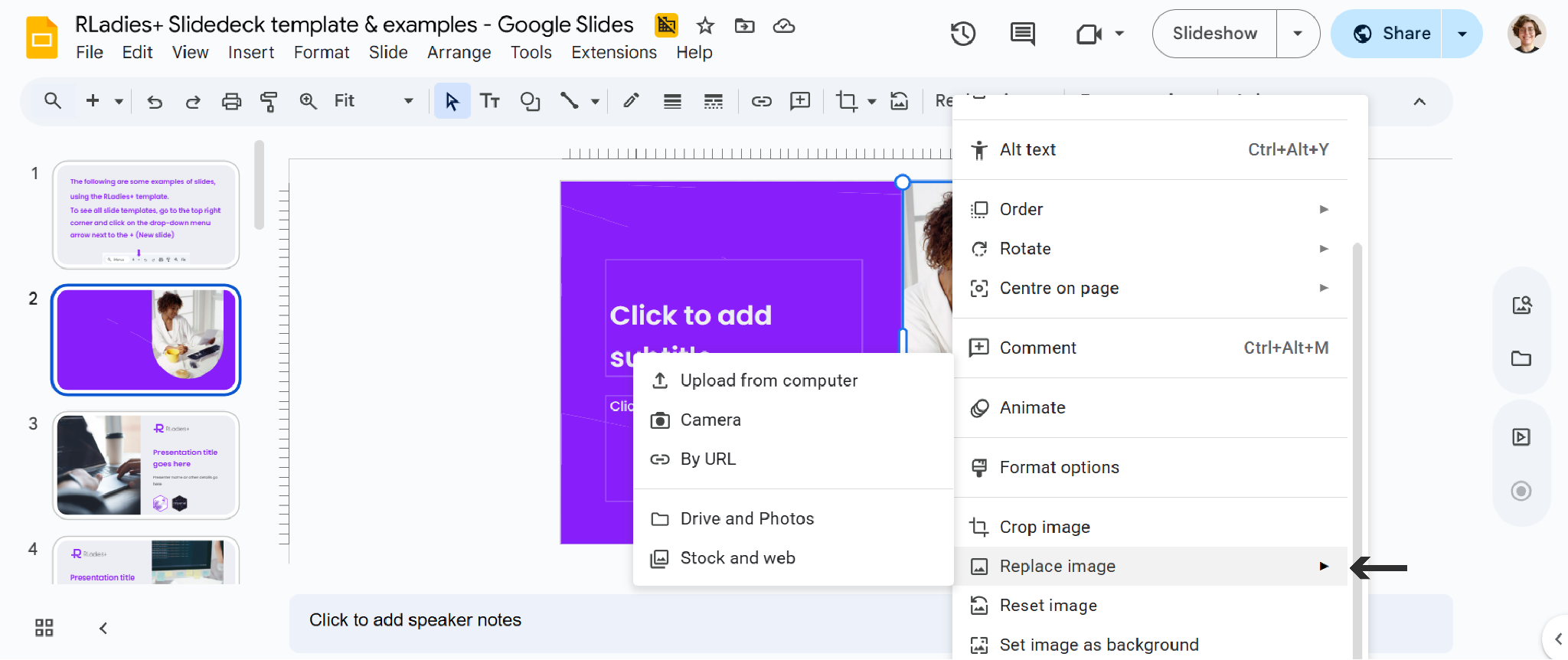
If the placeholder already has an image, right-click the image and select Replace Image.
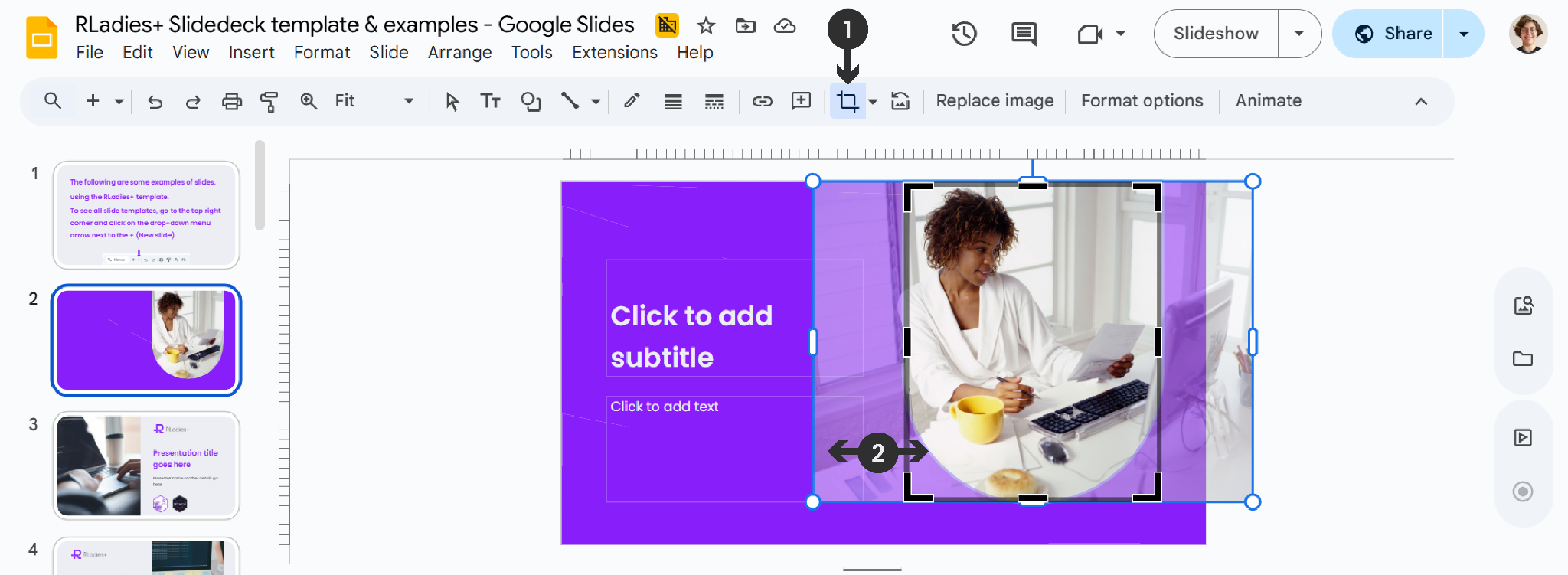
Use the Crop tool from the toolbar to adjust the image position within the placeholder. Images should fill the entire placeholder.
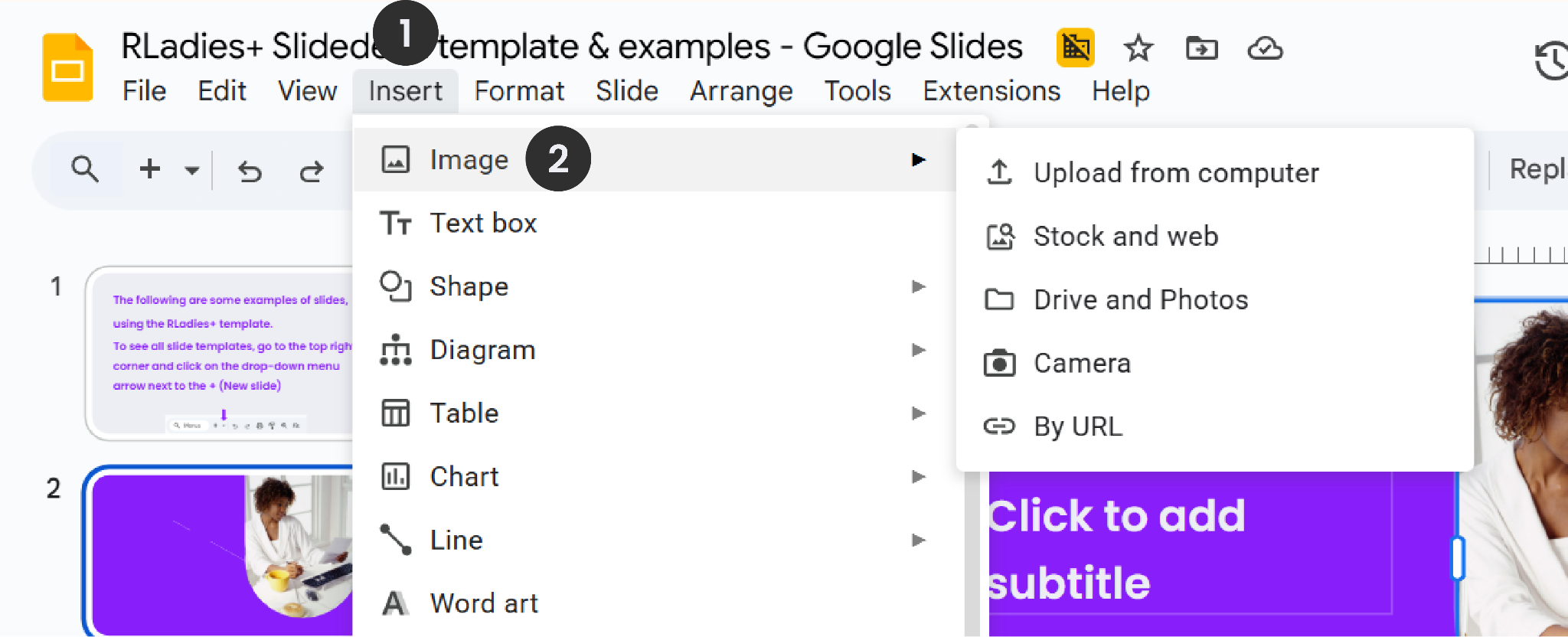
Logos: Use Insert > Image to add institution logos or R hex logos to your slides.
Adding slide numbers
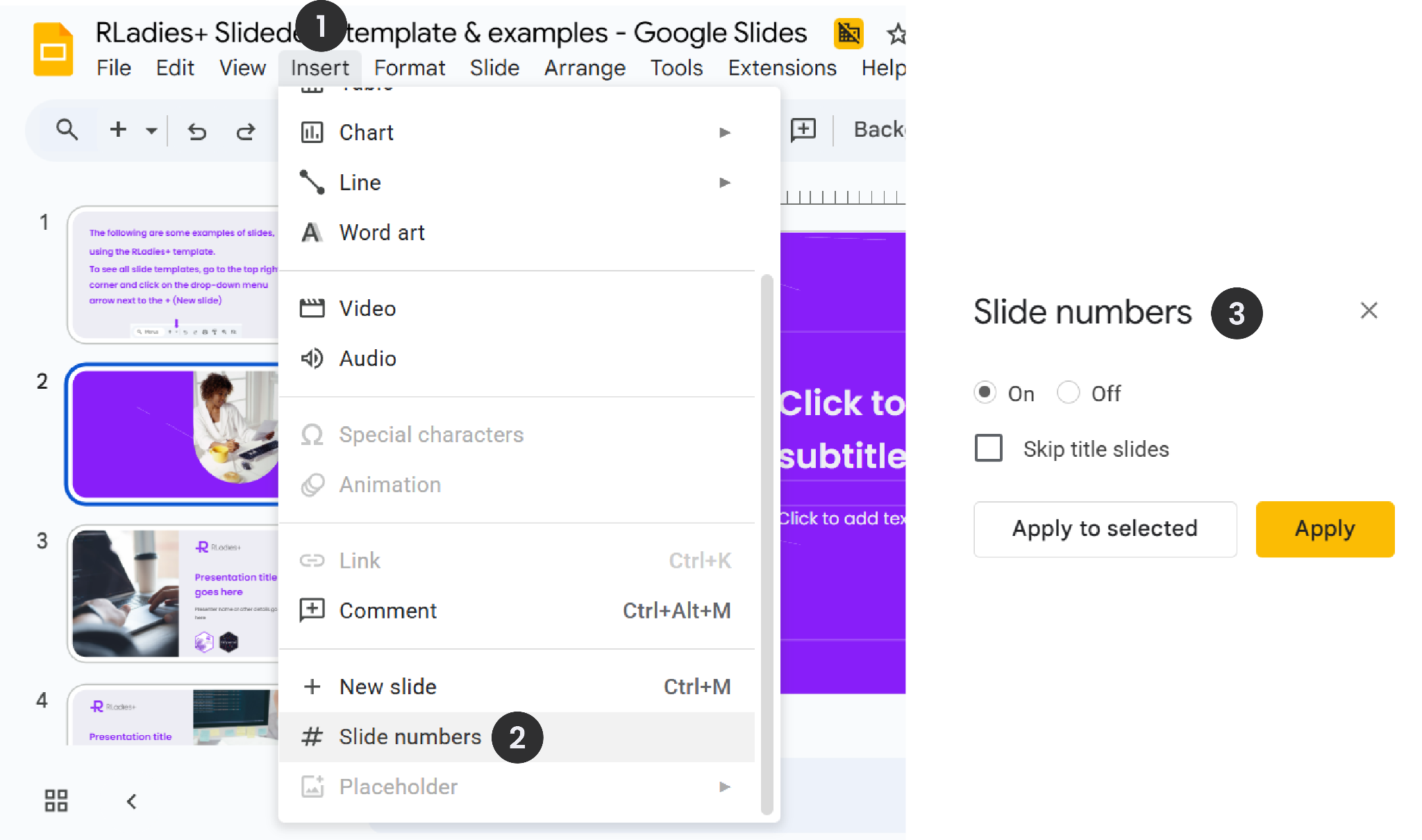
Go to Insert > Slide Numbers, toggle slide numbers On, and click Apply.
Exporting
Go to File > Download and select the format you need:
- .pptx — editable PowerPoint format
- .pdf — universal, not editable
You can also share directly via File > Share > Share with Others for collaboration.
PowerPoint
PowerPoint requires paid licensing, though educational institutions often provide access.
Getting started
- Download the RLadies+ Slidedeck template PPT file
- Open it directly through PowerPoint
The file comes with the Poppins font embedded. If you see font display issues, install Poppins from Google Fonts.
Choosing slide layouts
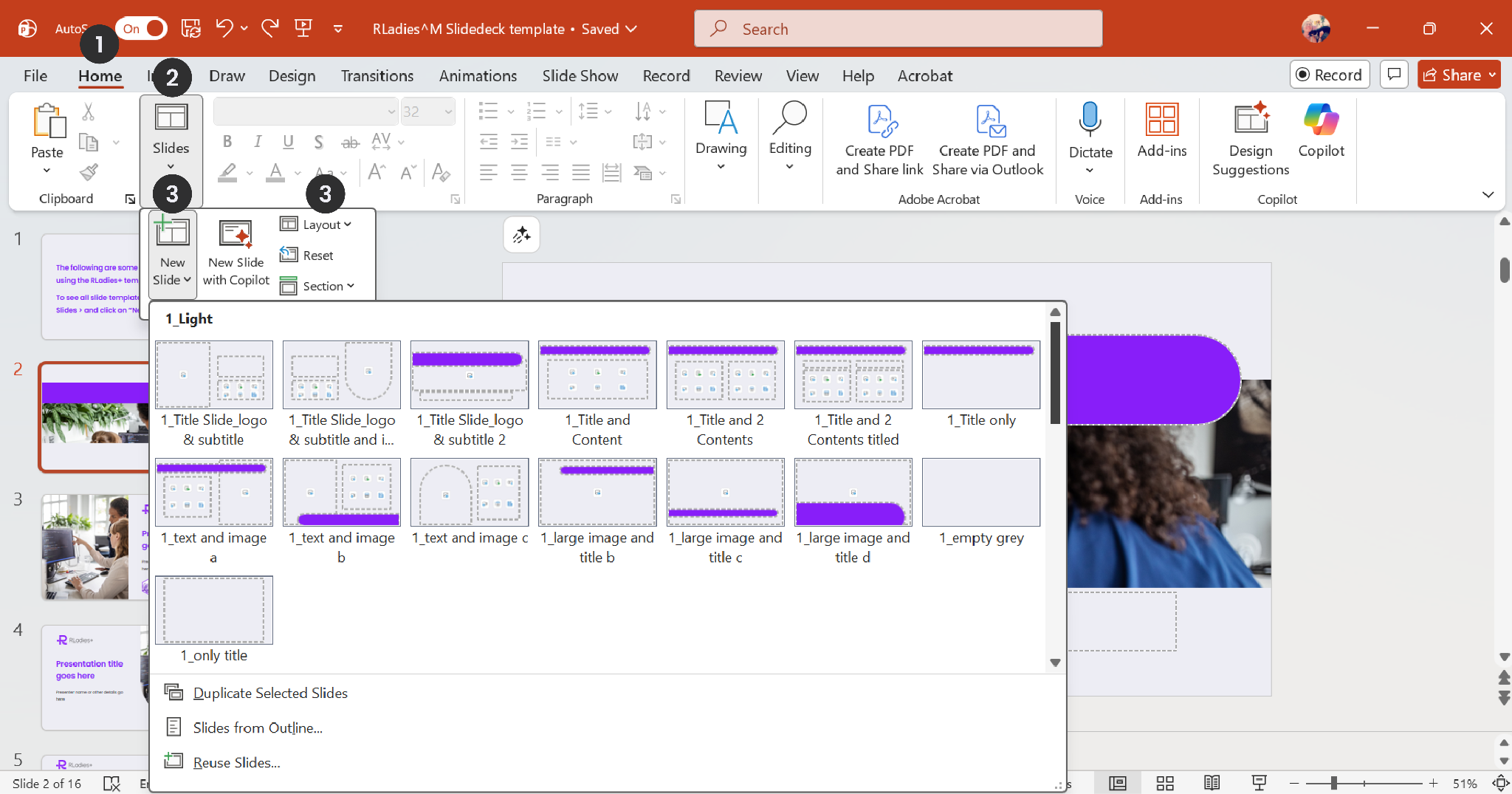
Access different layouts through the Home tab by clicking the dropdown on New Slide or Layout. Layouts are available in the same three variations: light, purple, and dark.
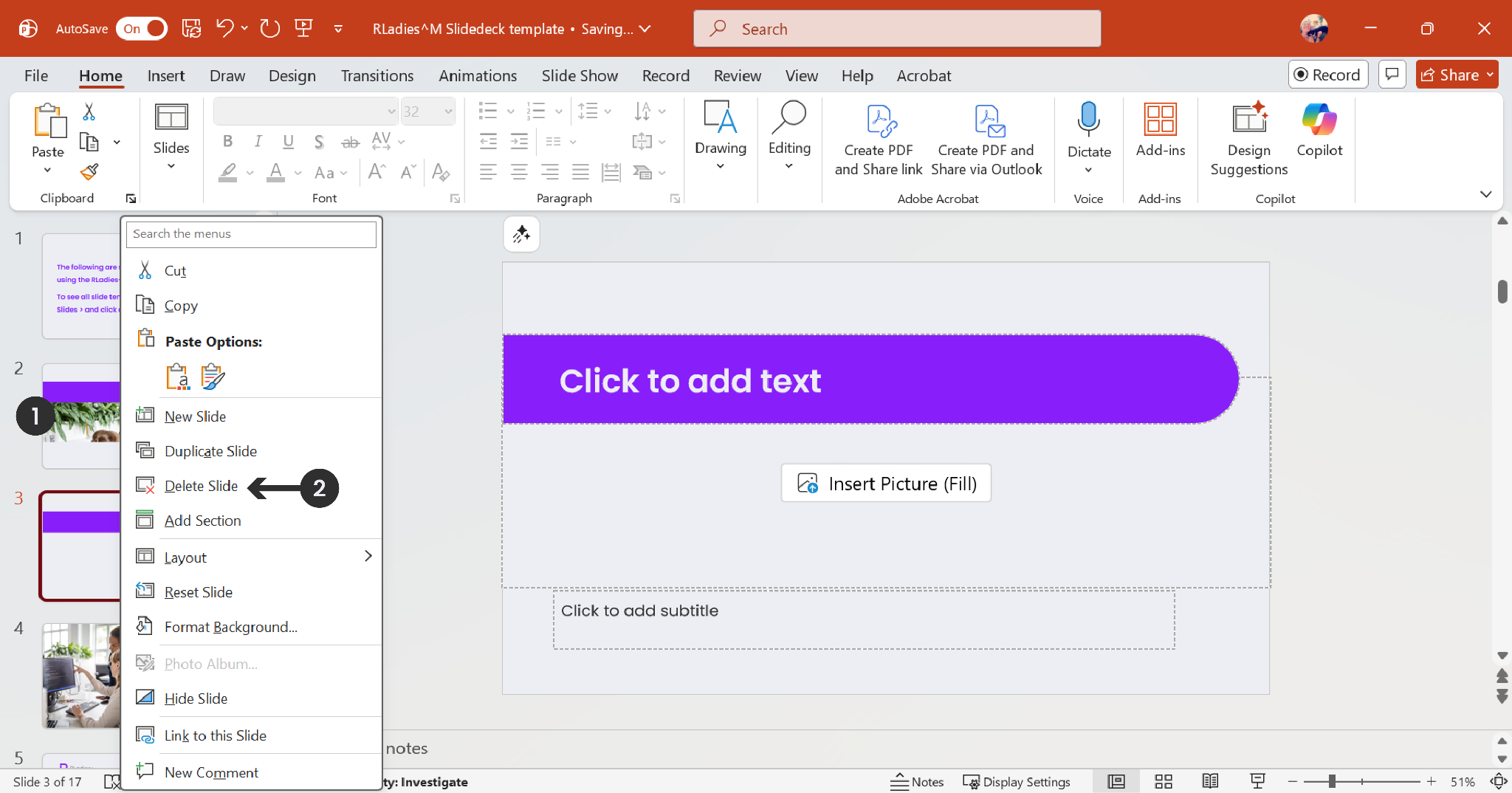
To remove example slides, right-click the slide thumbnail and select Delete Slide.
Slide elements
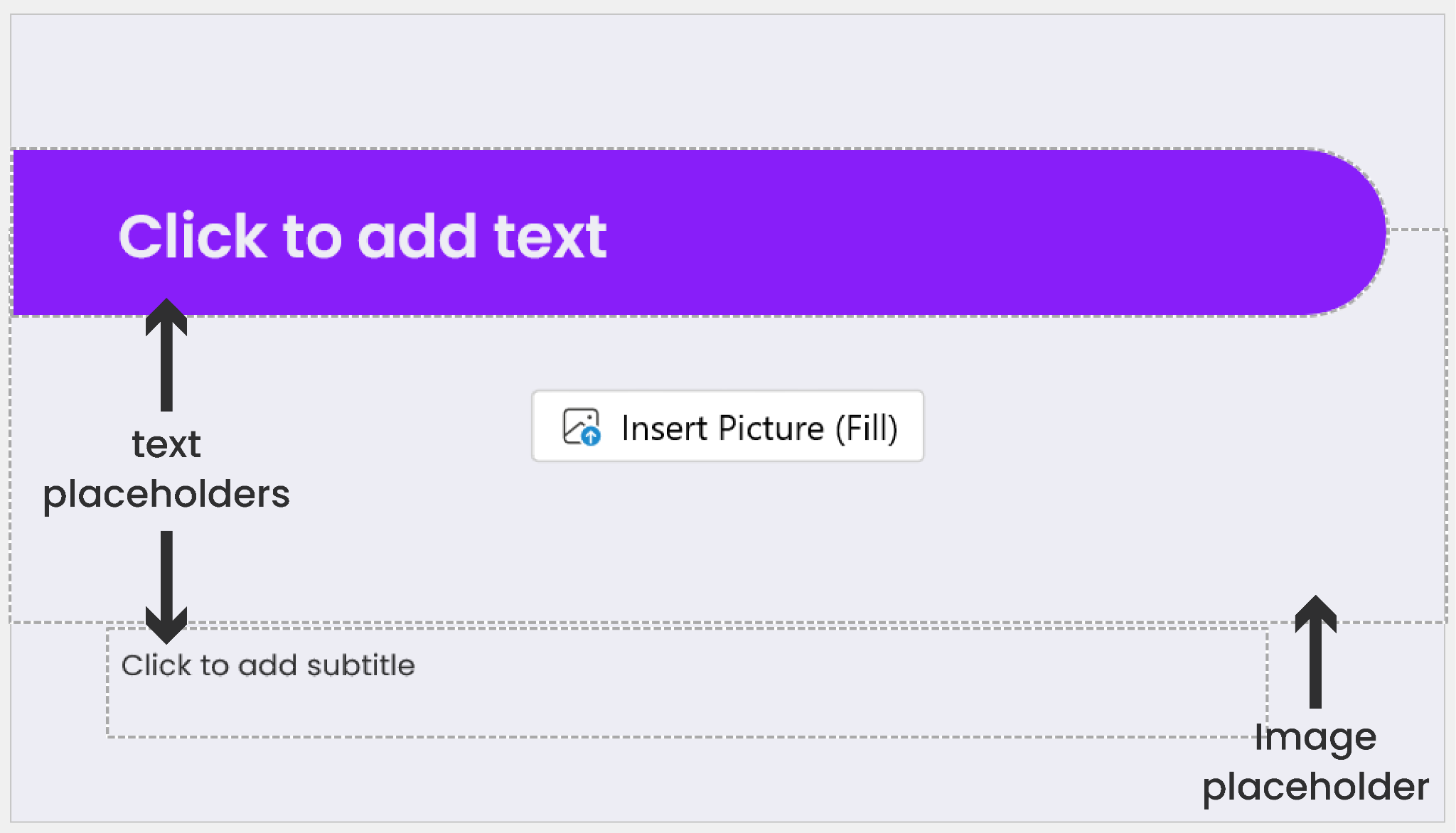
Each layout has text and image placeholders, similar to Google Slides.
Adding content
Text: Click a text placeholder and type. Use bold for emphasis only.
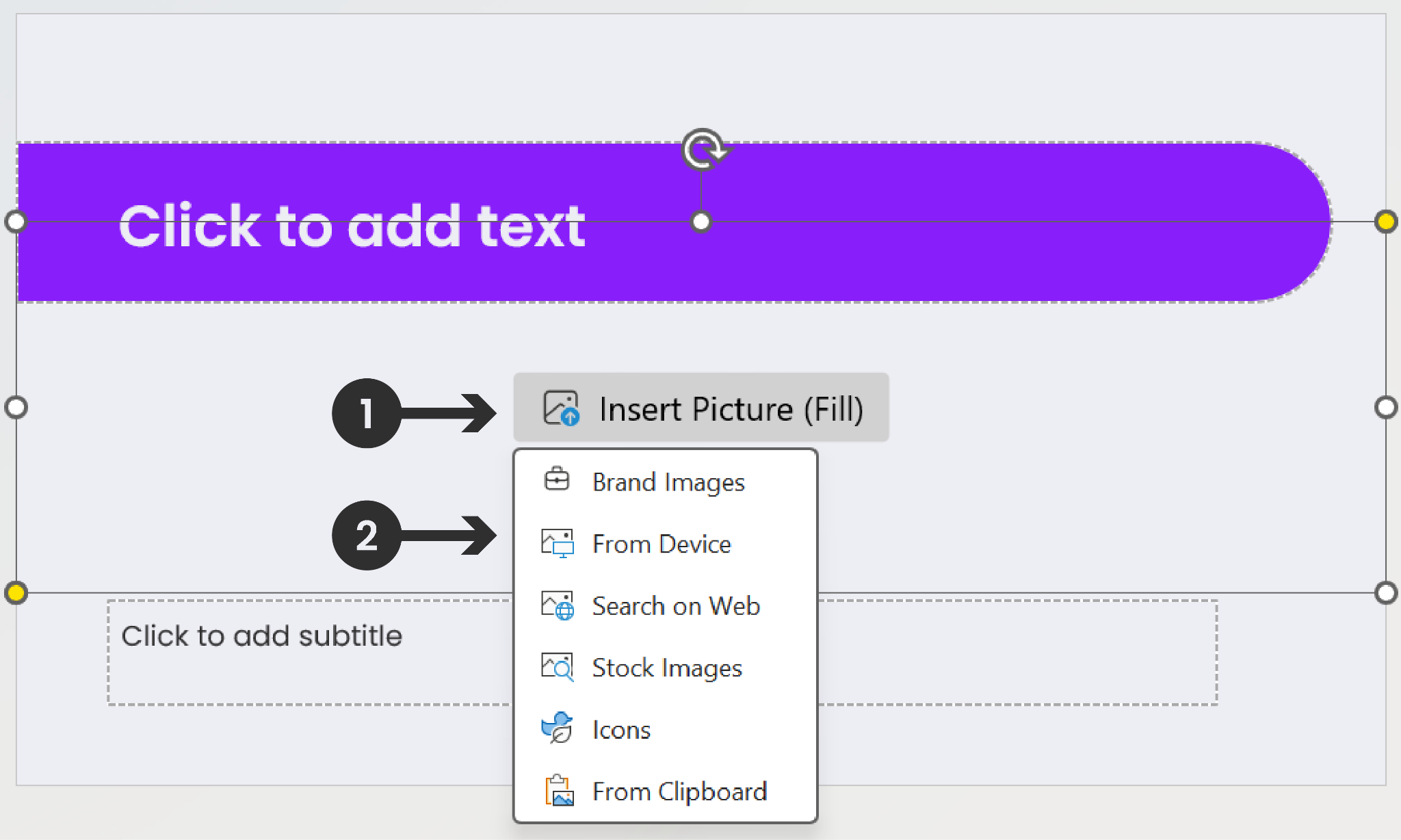
Images: Click the Insert Picture (Fill) button in the placeholder and choose a source.
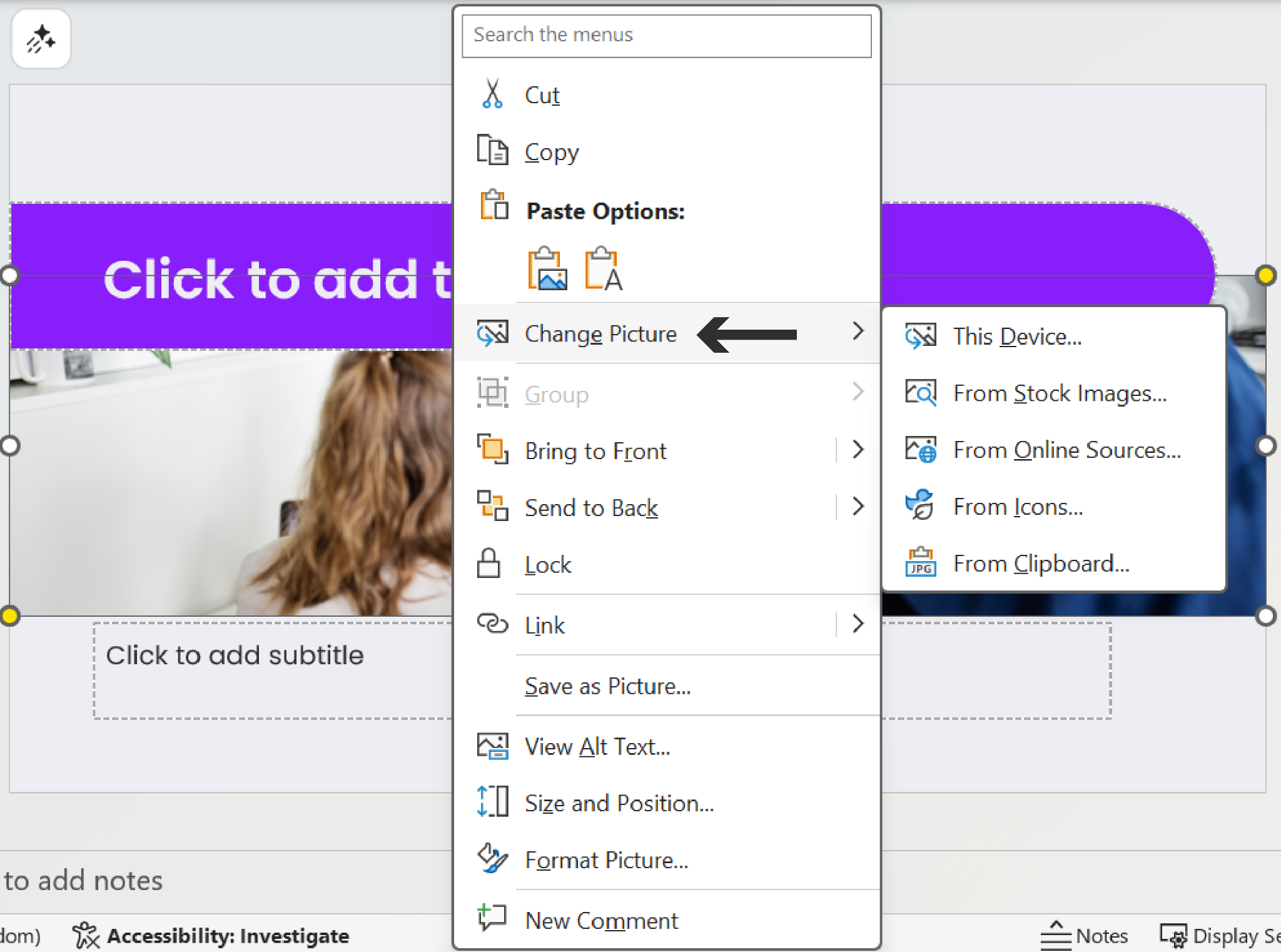
To replace an existing image, right-click it and select Change Picture.
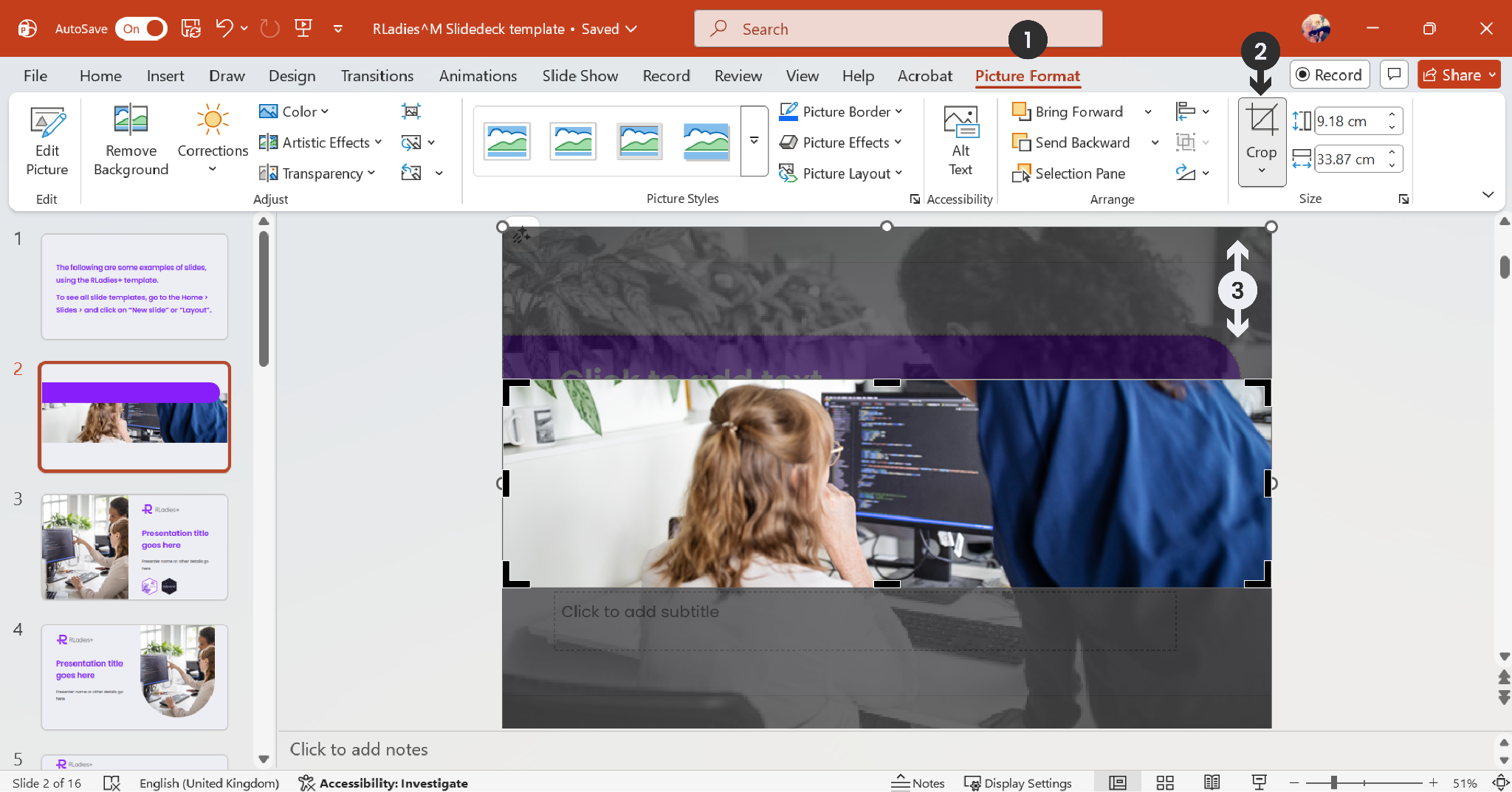
Use the Crop tool in the Picture Format tab to adjust the image position.
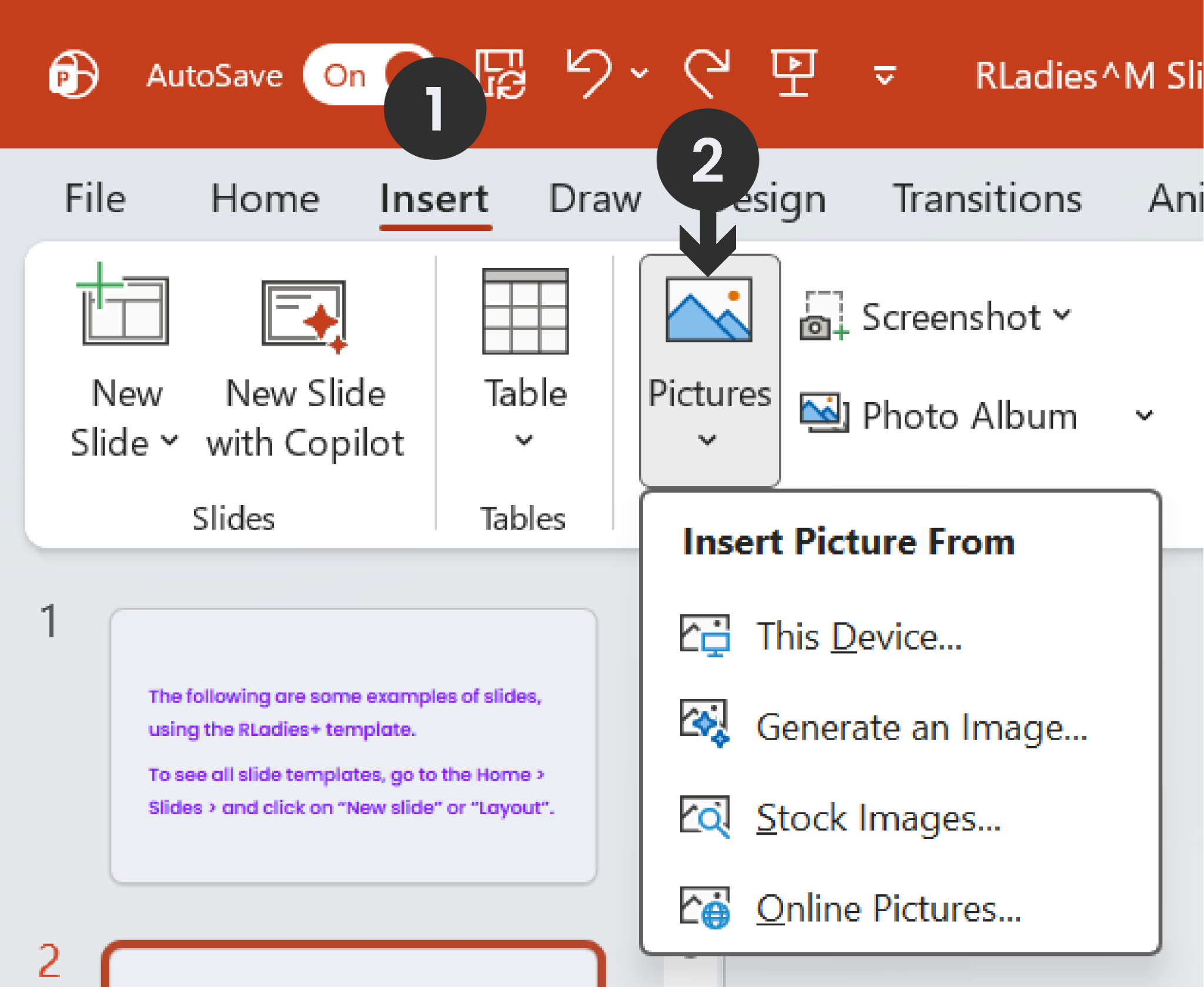
Logos: Use Insert > Pictures to add institution logos or R hex logos.
Adding slide numbers
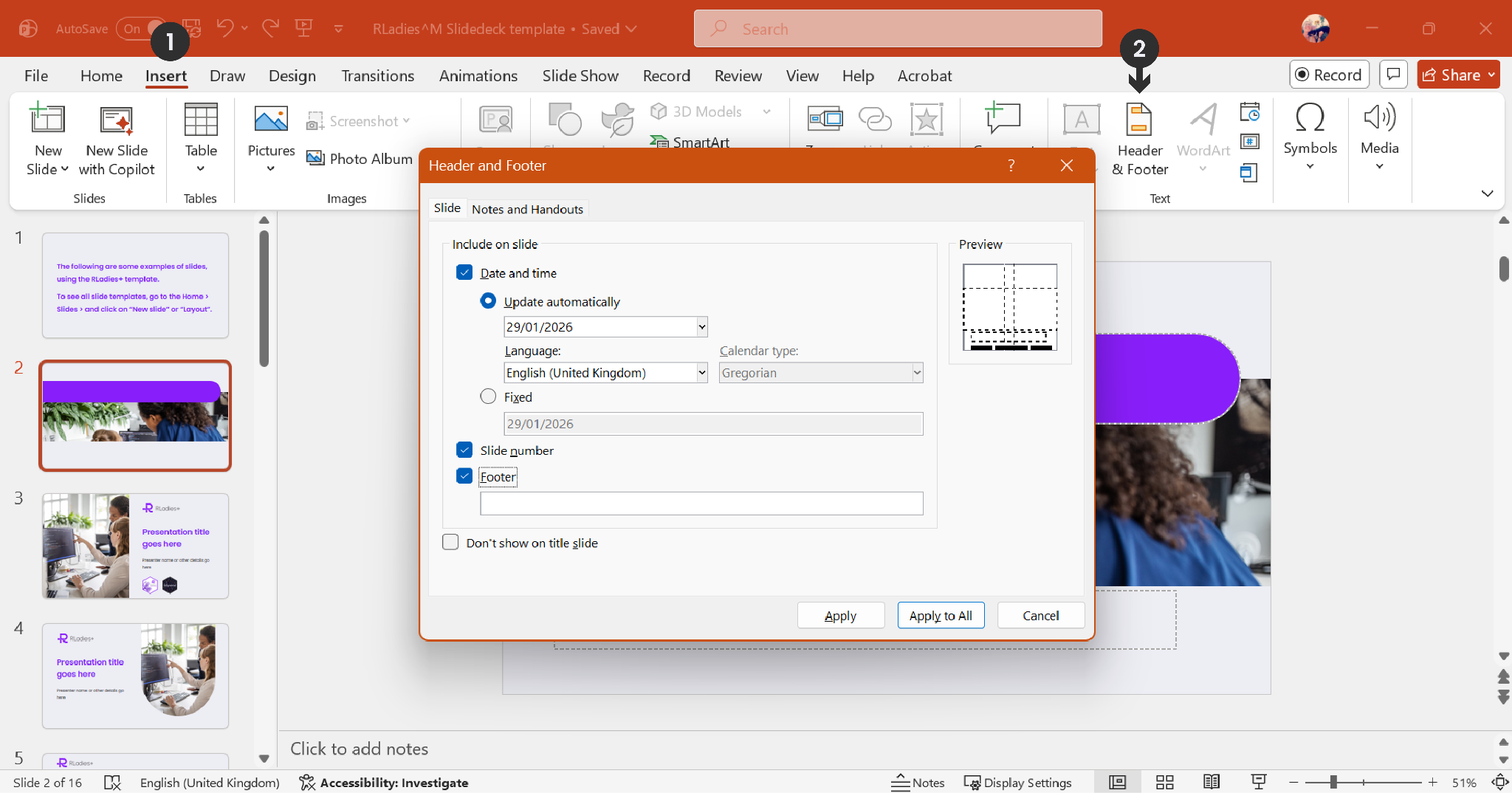
Go to Insert > Header & Footer, check Slide number, and click Apply to All.
Exporting
Go to File > Save As or File > Export and select the format:
- .pptx — editable PowerPoint format
- .pdf — universal, not editable